Getting started on Amarel
Table of contents
Setting up an account
Setting up an account on Amarel is straight forward. Visit the OARC website and click the ‘Amarel Cluster Access Request’ button. Once you login with your Rutgers NetID, this button will take you to an online form. Complete it and an OARC staff member will do the rest.
Accessing Amarel
Rutgers VPN
If you are outside the Rutgers network, you will need to log onto the Rutgers VPN before you can access Amarel. Accessing the Rutgers VPN requires you to download the Cisco AnyConnect Client. Go to https://vpn.rutgers.edu, login with your NetID, and then click the ‘Start AnyConnect’ button. This will take you a webpage where you can download the client.
Once the client is installed, use your NetID credentials to log onto the Rutgers VPN.
Note
You do not need to be on the Rutgers VPN if you are on the Rutgers network.
SSH to Amarel
Assuming you’re on the Rutgers network or the Rutgers VPN, the quickest way to access Amarel is via SSH. If you’re on Mac OS or Linux, this can be done via the Terminal app:
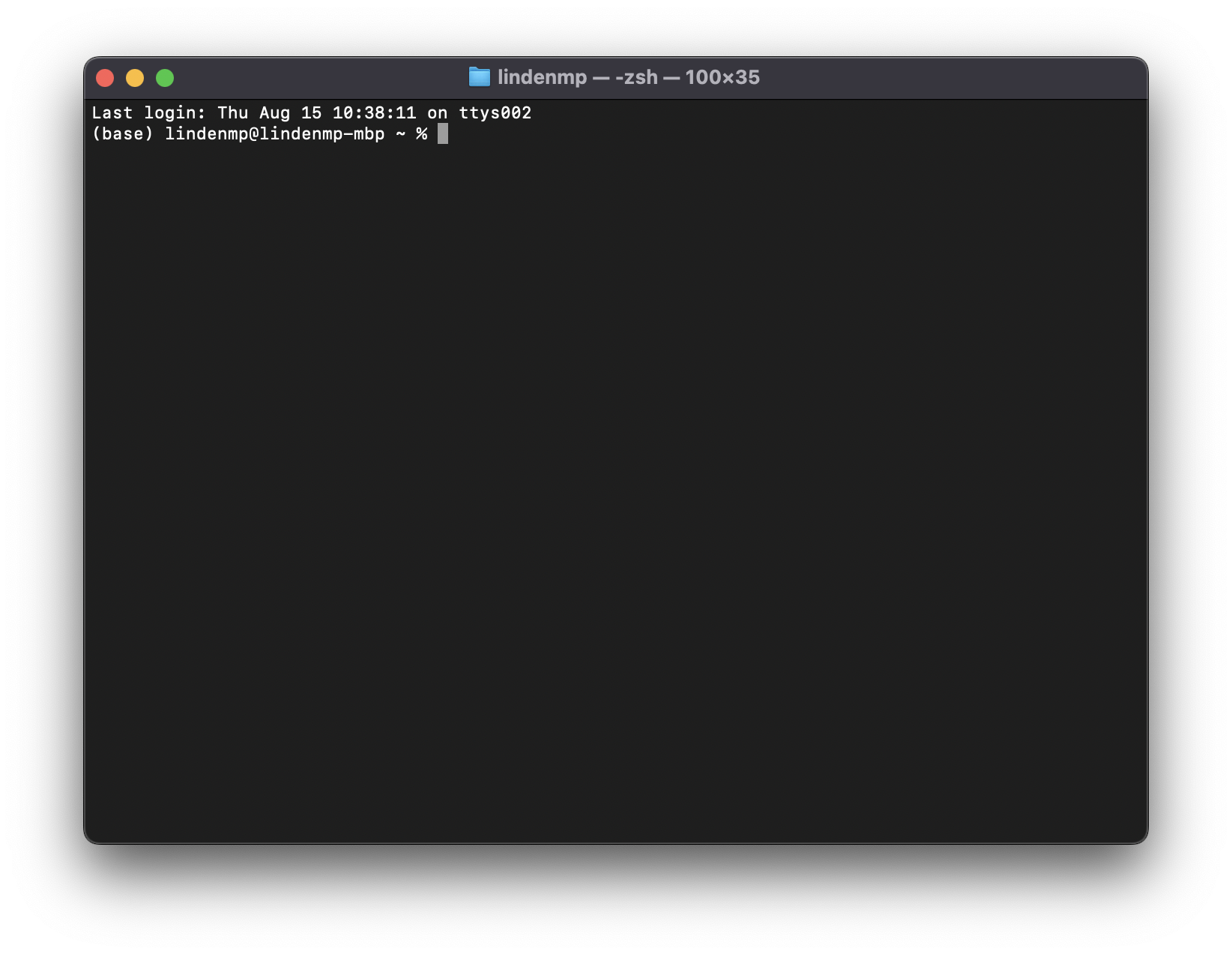
In the terminal, enter the following (replace lp756 with your Rutgers NetID):
$ ssh lp756@amarel.rutgers.edu
This will trigger a prompt for your password. Carefully enter your NetID password and hit Return. Note, you will not see anything appear in the terminal as you type. That’s normal. Your terminal should now look something like this:
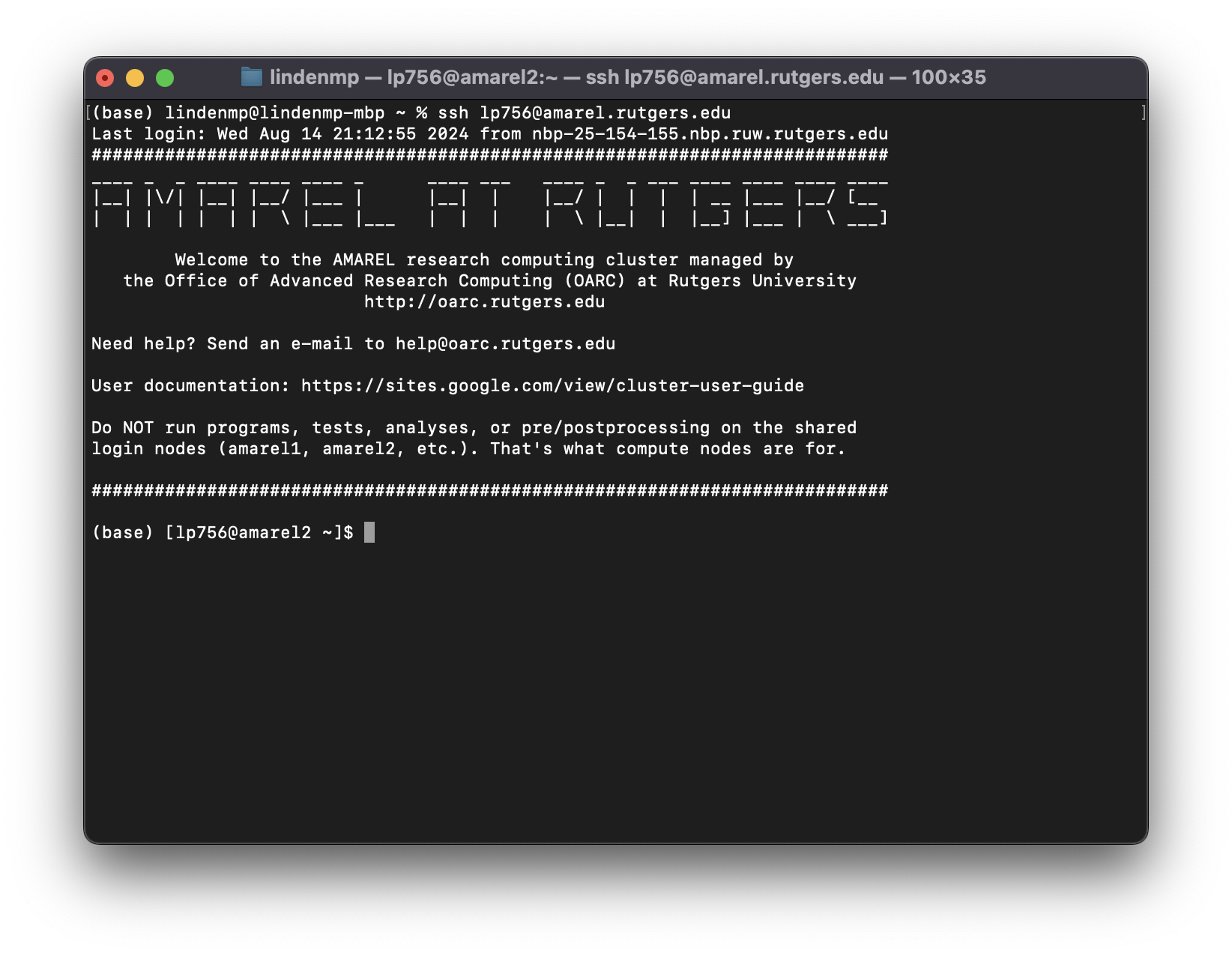
You’re now logged on to Amarel! Look at you go.
Set up an SSH key
The above steps are simple but become annoying if you have to do them over and over again every time you need to access Amarel. Thankfully, we can streamline this process using SSH keys. SSH keys are a kind of ‘secret hand shake’ between your local computer and Amarel that allows you to log in without entering your password each time.
First, on your local machine (i.e., not logged into Amarel), enter:
$ ssh-keygen
This will trigger a series of prompts in your terminal. Just hit return for each without entering any additional information. Once you’re finished, your terminal should print out a funky looking text-based image. Don’t worry about saving this image, you can ignore it.
You will also see that ssh-keygen saved a couple files in a folder called .ssh/ located in your user directory. For example:
Your identification has been saved in /Users/lindenmp/.ssh/[xxx]
Your public key has been saved in /Users/lindenmp/.ssh/[xxx].pub
These files will enable the ‘secret hand shake’ between your local computer and Amarel. To get this working, we need to copy these keys to the equivalent .ssh/ directory on Amarel. We do this by entering the following command (again, replace lp756 with your Rutgers NetID and enter your NetID password when prompted):
$ ssh-copy-id lp756@amarel.rutgers.edu
Now, both your local machine and Amarel have copies of your SSH keys. As a result, the next time you log into Amarel you won’t need to enter your password. Try it out!
Set up an SSH alias
After setting up your SSH keys, the last step is to setup an SSH alias that will streamline your login process even further. To do this, on your local machine, open up a file called config in your .ssh/ directory. We will use a simple text editor called nano to do this:
$ nano ~/.ssh/config
This file may be completely empty right now, which is fine. Paste the following lines into the config file (replace lp756 with your Rutgers NetID):
Host amarel
        HostName amarel.rutgers.edu
        User lp756
Then press CTRL-X, and then the Y key, and then Return (one at a time, not all together). This will save and close the config file and return you to the terminal. Note, config can store multiple entries like the one above. For example, mine looks like this:
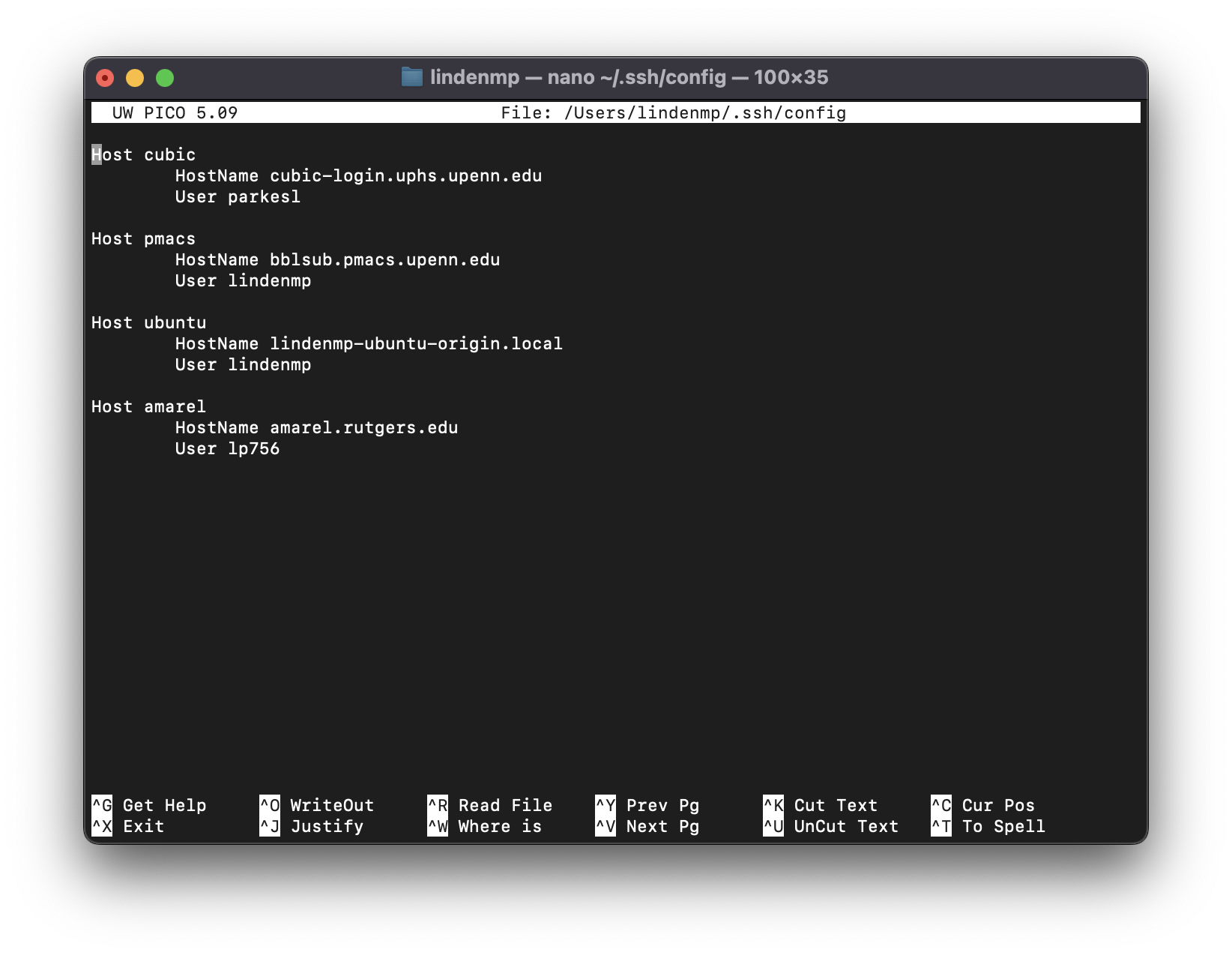
And voila! Now you should be able to log into Amarel, without entering your password, simply by typing:
$ ssh amarel
So much better.