Tools
Table of contents
This page includes simple tools you can setup on your Amarel account
Editing your .bashrc
Many of the tools outlined below require you to modify your .bashrc on Amarel. If you aren’t familiar, your .bashrc (as well as your .bash_profile) is basically just a short text file that issues a set of commands to the system every time you open a terminal (or in the case of .bash_profile, every time you log in). To edit your .bashrc, open it like so:
$ nano ~/.bashrc
This will open the file in your terminal and allow you edit to it. You should see something like this:
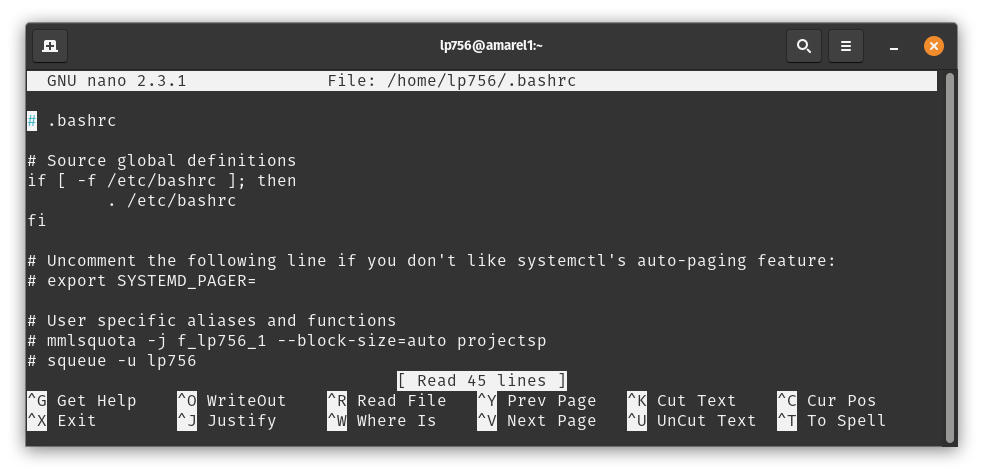
Once you’ve edited your .bashrc, press CTRL-X, and then the Y key, and then Return (one at a time, not all together). This will save and close the file. Now, the next time you open a terminal on Amarel, the new lines of code will run automatically in the background, enabling new functionality.
Slurm tricks
Below, you’ll find some simple tools that we use every day.
myq
Add the following to your .bashrc:
#--------------------------------------------------
alias myq='squeue --me -r'
#--------------------------------------------------
Now, if you ever want to quickly check the status of jobs, just type:
$ myq
qcount
Just need a count of running and pending jobs? Add the following qcount function to your .bashrc:
#--------------------------------------------------
# qcount
qcount () {
counts="$(squeue --me -h -r -o '%T' | uniq -c)"
total=$(echo "$counts" | awk '{sum+=$1;}END{print sum};')
echo "$counts"
echo "      ----------"
echo "      $total TOTAL"
}

qcounttot () {
qcount | tail -1 | awk '{print $1}'
}
#--------------------------------------------------
qcancel
Need to cancel all of your jobs? Add the following to your .bashrc:
#--------------------------------------------------
alias qcancel='scancel --me'
#--------------------------------------------------
psout
Want to quickly check the progress of all your currently running jobs? Add the following psout function to your .bashrc:
#--------------------------------------------------
# print slurm outputs
psout () {
for i in *.out; do echo; echo ${i}; tail -${1} ${i}; echo; done
}
#--------------------------------------------------
Then, navigate to where you have a bunch of slurm*.out files and run:
$ psout 1
This will print out the last line of every *.out file in your directory. Note, this can lead to a lot of information being printed to your command line.
psclear
Need to delete all of the slurm*.out files in your current directory? Add the following to your .bashrc:
#--------------------------------------------------
alias psclear='rm -rf slurm*.out'
#--------------------------------------------------
pswatch
Want to watch the outputs of a single job scroll by in ~real time? Add the following to your .bashrc:
#--------------------------------------------------
# watch slurm outputs for a single file
pswatch () {
watch -n 0.1 tail -n 100 ${1}
}
#--------------------------------------------------
Then, navigate to where you have a bunch of slurm*.out files and run:
$ pswatch ${YOUR_SLURM_FILE}