Amarel desktop
Table of contents
What is it?
To run interactive, GUI-based apps within a Linux desktop environment, we can use the Amarel Desktop service. This offers a full desktop environment that we can access through a web-based VNC viewer.
How do I get one?
First, go to the Rutgers OARC OnDemand website and log in with your NetID.
Note
You will need to be on the Rutgers network to access this website! See Amarel/Getting started for details.
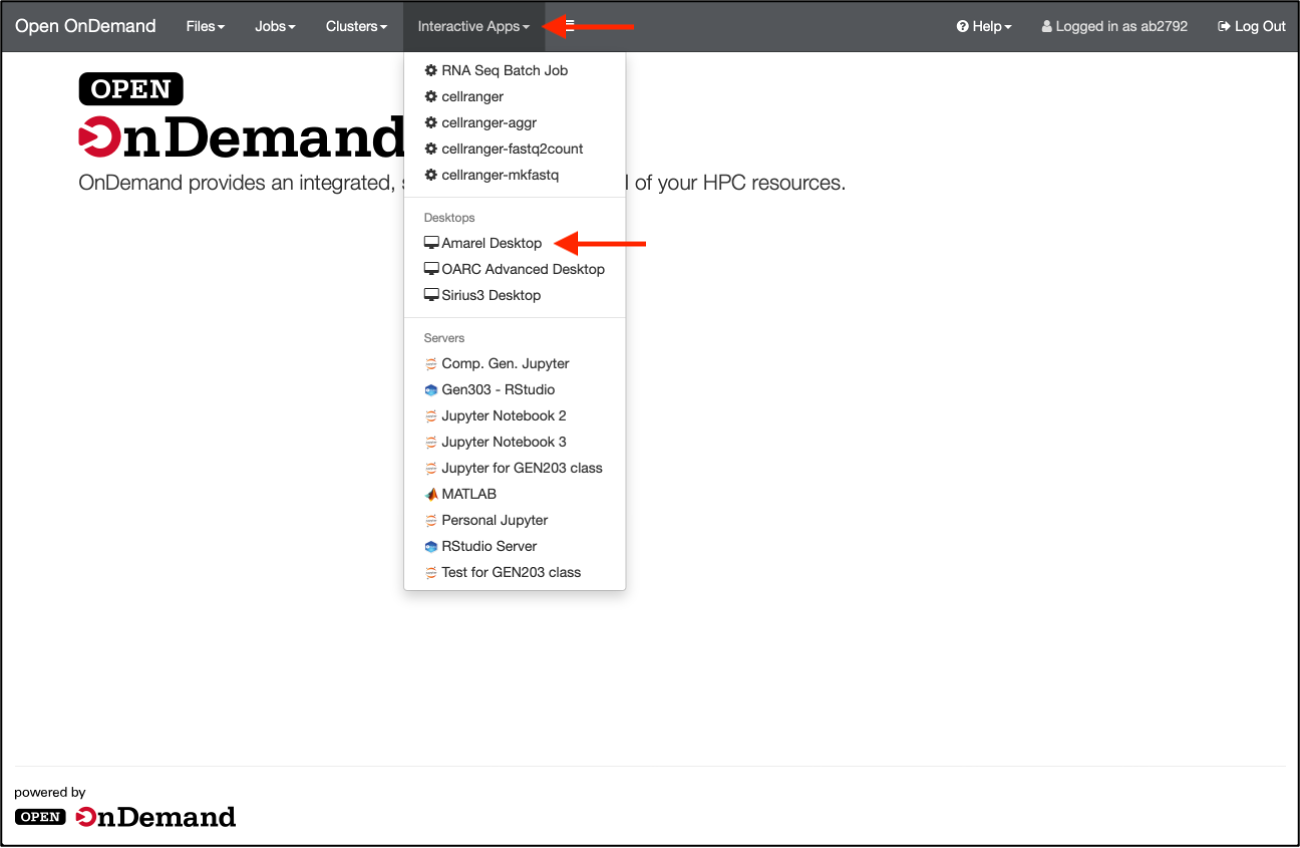
Once logged-in, select Interactive Apps from the menu bar, then Amarel Desktop.
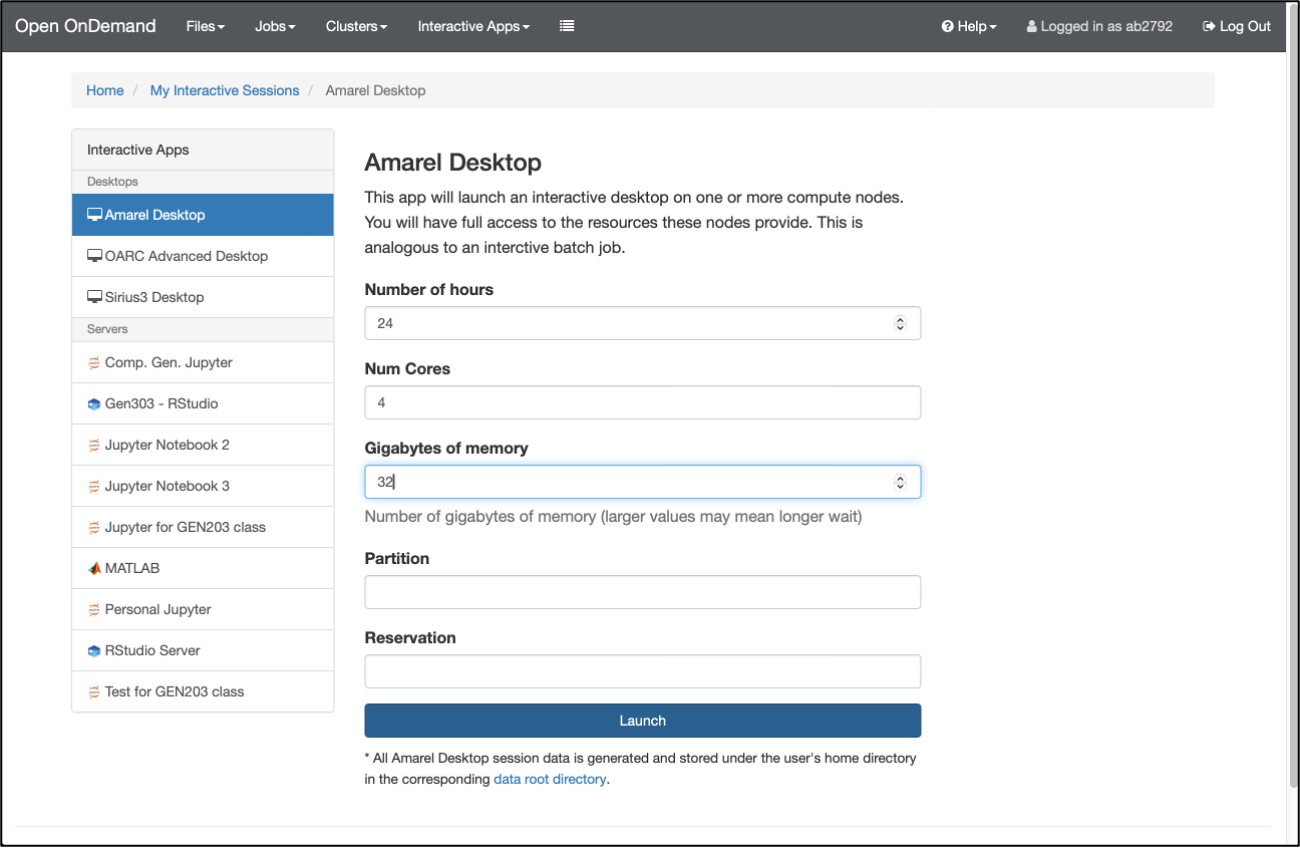
Populate the form with your preferences and click Launch.
Note
The maximum number of hours you can choose is 72, which is the general limit on any jobs submitted to the cluster. If you have access to the CAHBIR partition,
p_dz268_1, then you should be able to request even longer-running jobs by specifying this as the partition of choice. Keep in mind that the more hours and/or resources you request, the more likely it is for your job to get stuck in the queue.
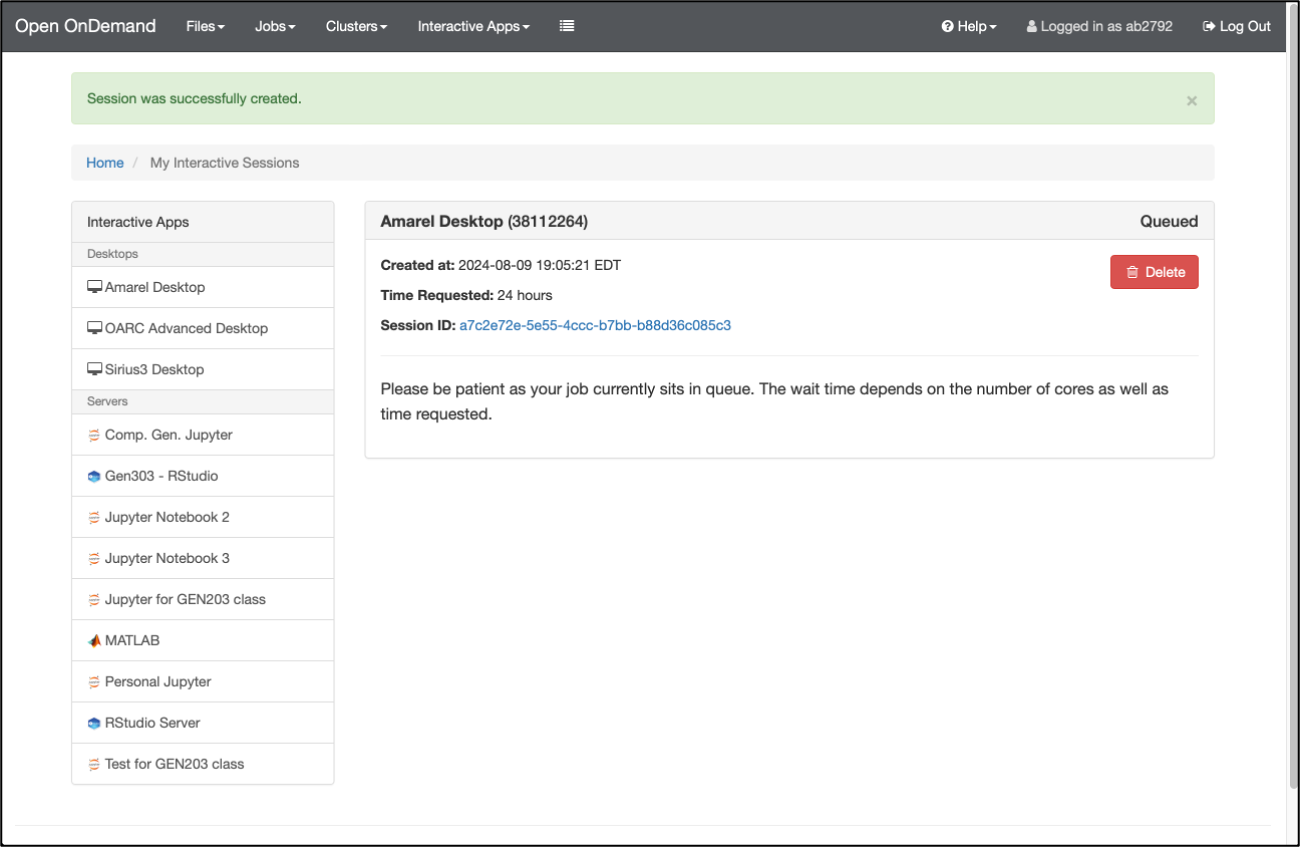
Your request for this interactive desktop session will now be submitted to a queue as a slurm job.
Once the queued job runs, its status will change to Running. You will also see the button Launch noVNC in New Tab. Click this to access the session.
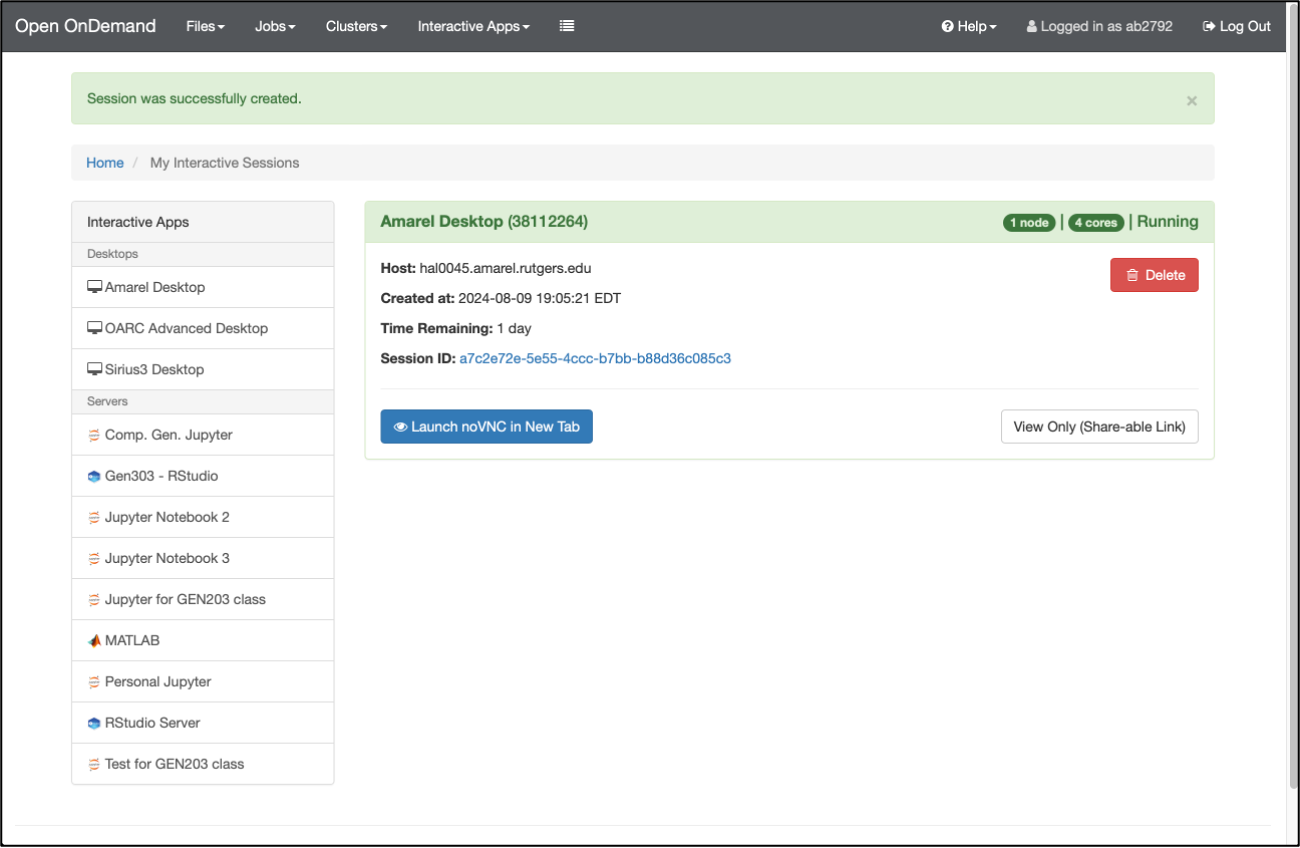
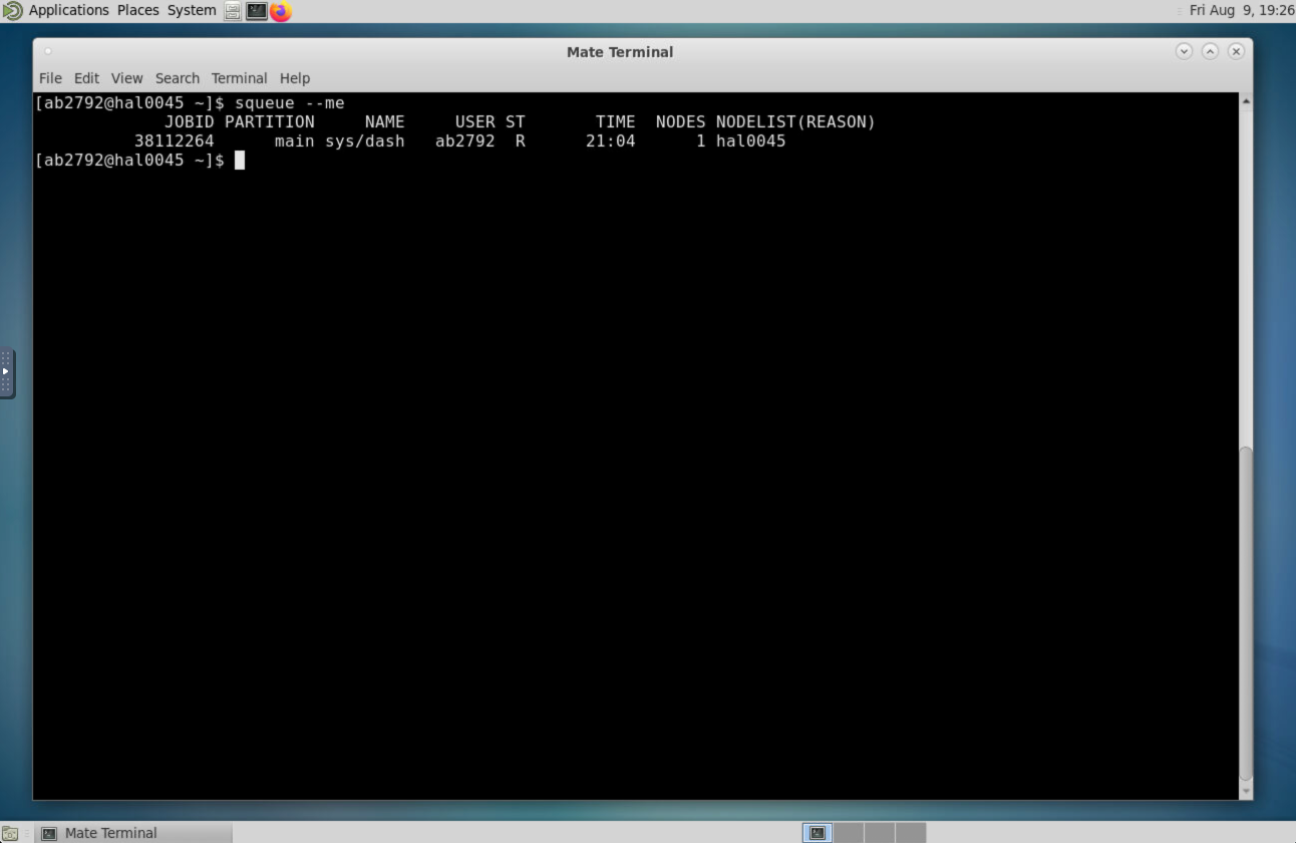
You now have a Linux desktop on the cluster! If you open a new terminal and type squeue --me, you will see this session listed as one of your active jobs.