General Reimbursement
Table of contents
Using Concur
All reimbursements at the SNaP Lab are processed via Concur. You can access Concur through your myRutgers Portal. First, navigate to the Apps page (which can be found in the red side bar on the left hand side of the page) and open Concur Travel & Expense. Note, if you’re having trouble finding Concur, use the Search Apps bar in the top right corner. Also, you can save the Concur app as a favorite for easier access later.
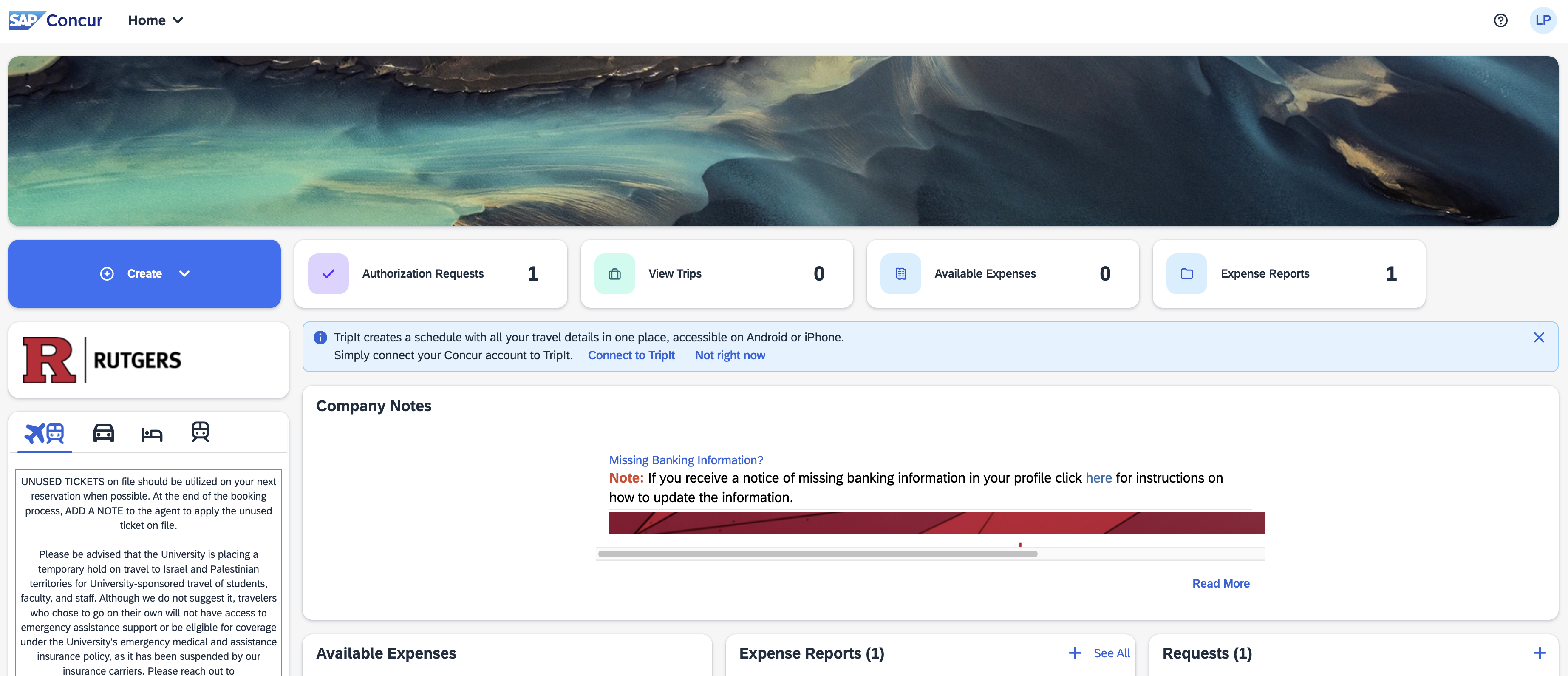
You should be taken to a page that looks like this:
Submitting a expense report to claim reimbursement
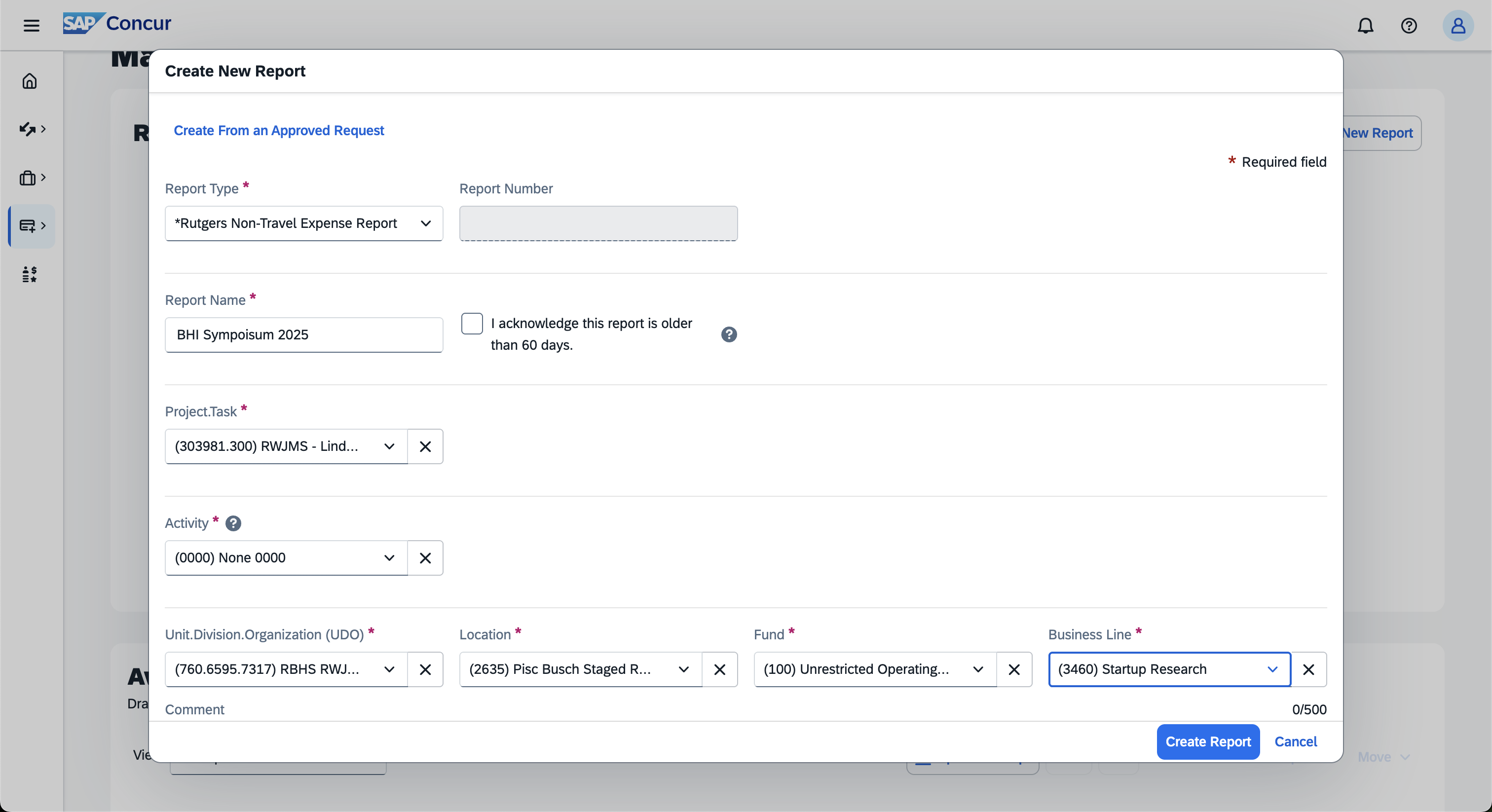
Unlike travel, non-travel related reimbursements do not need prior approval. From the Concur home page click on the big blue Create button and then click Start a report. This will open a new report with a blank header. In the Report Type dropdown box, select *Rutgers Non-Travel Expense Report. Then, fill out the remainder of the header by giving the report a name and using the appropriate funding information provided by Linden. Below is an example:
Note
Please contact Linden for the appropriate
Project.Task,Activity,Unit.Division.Organization (UDO),Location,Fund, andBusiness Linecodes. These will typically be Linden’s startup funds, but may change. It’s important to verify with Linden before submitting.
Click Create Report and you will be taken to your empty report. Now you can add the expenses that you want reimbursed. First, click + Add Expense and then select Manually Create Expense. Now search for the expense type you want to have reimbursed. For example, if you search for and select Conference/Seminar Registration Fees, you will get the following window:
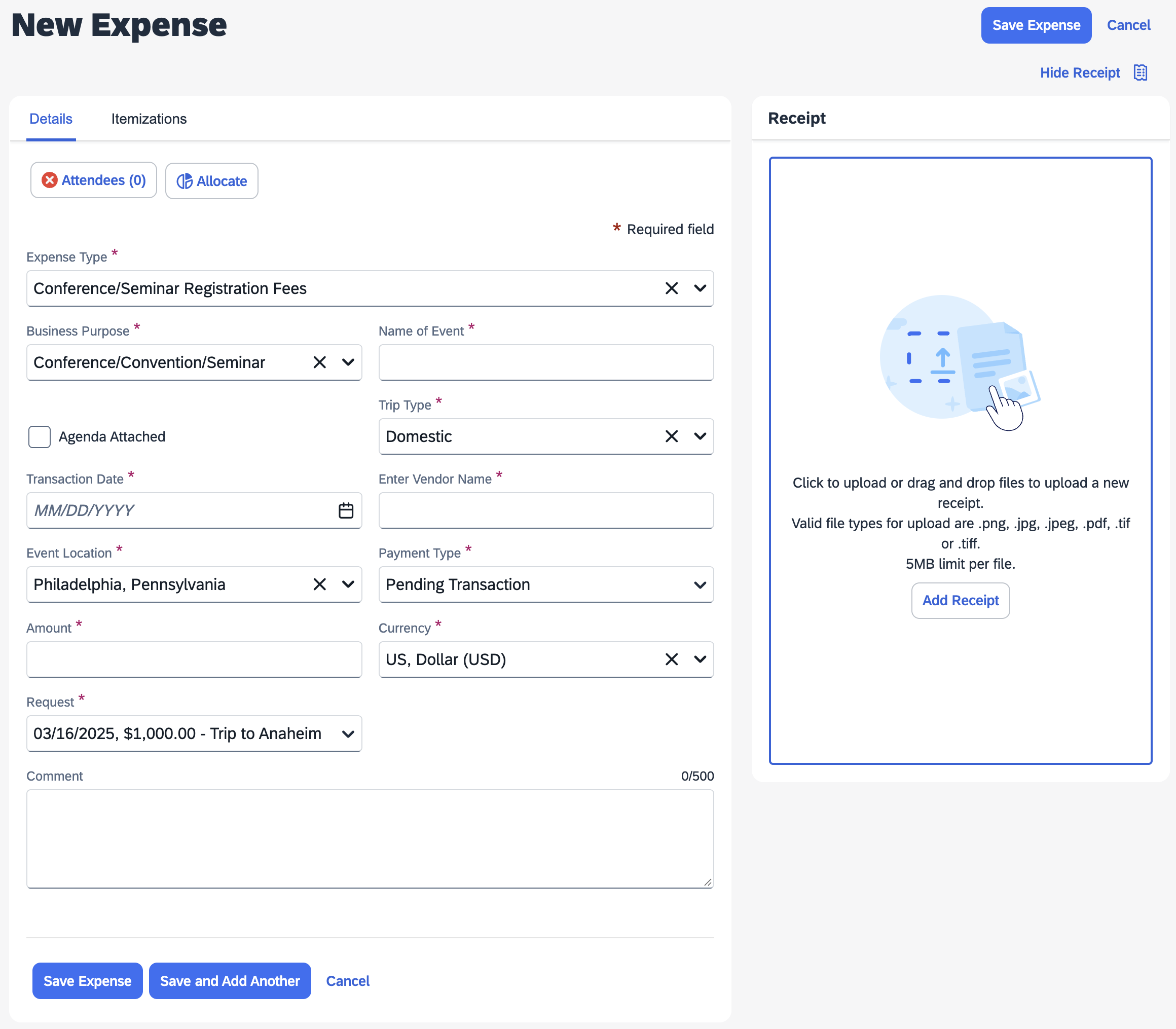
You will need to fill out all the boxes marked with a red asterisk. Most importantly, you will also need to upload a receipt (click Add Receipt button) and add Attendees. For the latter, you just need to add yourself as an attendee. Finally, for Conference/Seminar Registration Fees in particular, you will need to also upload some evidence of conference attendance (e.g., a conference program booklet or attendance certificate). See below for an example of a completed Conference/Seminar Registration Fees expense:
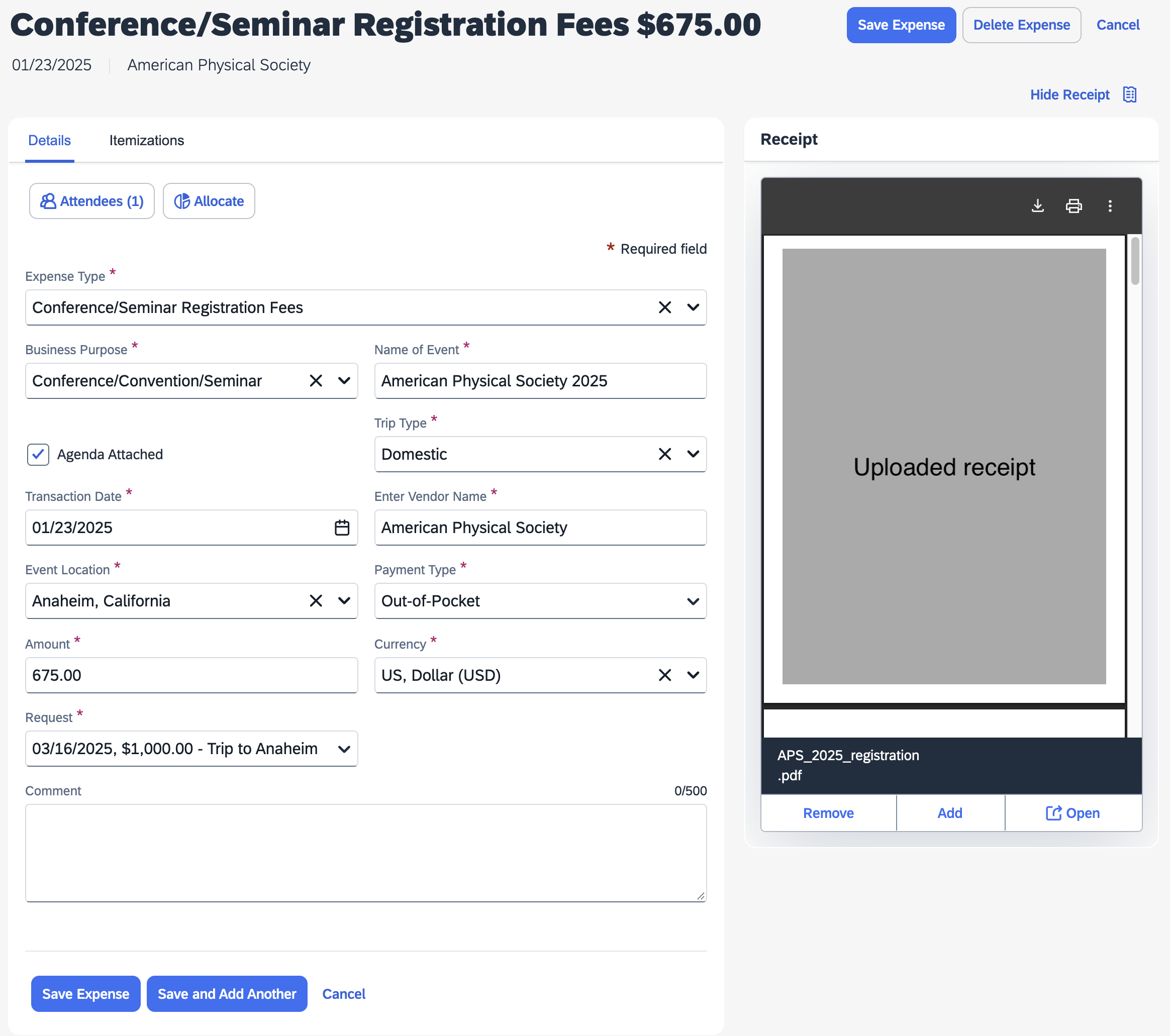
Note, the Request dropdown box will only appear for expense reports that include travel and thus have an associated pre-approval request (see the Booking travel at Rutgers tutorial for more information). If won’t appear for general non-travel related reimbursement requests. Once completed, click Save Expense in the bottom left and you will be brought back to the report page. From there you can add more expenses.
Note, you may encounter errors along the way. If you have any questions, please ask Linden.
Rutgers videos
For more detailed guides, see the following list of videos from Rutgers: